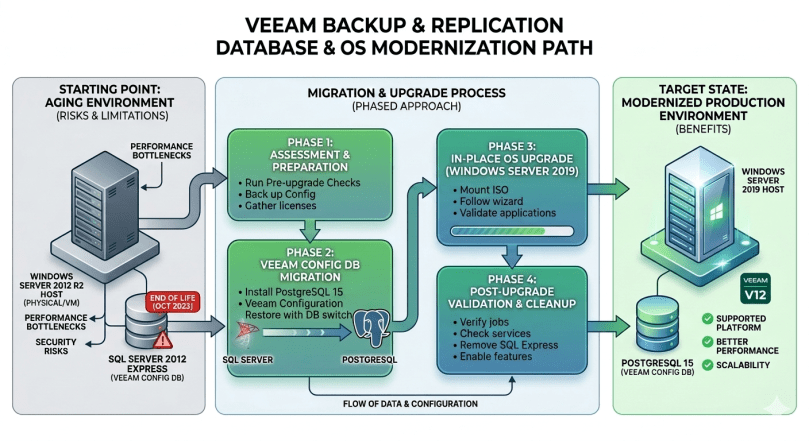
If you’re running Veeam Backup & Replication on an aging Windows Server 2012 R2 host, chances are it was originally configured with a SQL Server Express backend — the default for older Veeam installations. With Veeam V12 standardizing on PostgreSQL and Windows Server 2012 R2 reaching end of life, the time to modernize is now.
This guide covers a complete, production-tested migration path: assessing your current environment, migrating the Veeam configuration database from SQL Server 2012 to PostgreSQL 15, and performing an in-place OS upgrade to Windows Server 2019 — all without rebuilding the server from scratch.
Environment
| Component | Before | After |
|---|---|---|
| Operating System | Windows Server 2012 R2 Standard | Windows Server 2019 Standard |
| Veeam B&R | 12.3.1.1139 | 12.3.1.1139 |
| Database Engine | SQL Server 2012 Express | PostgreSQL 15 |
| Deployment | VMware Virtual Machine | VMware Virtual Machine |
Part 1: Assessing What You’re Actually Running
Before making any changes, you need to understand exactly what’s on the system. Assumptions here can cost hours of recovery time.
Identify the Veeam Version
Open PowerShell as Administrator and read the version directly from the service executable:
(Get-Item "C:\Program Files\Veeam\Backup and Replication\Backup\Veeam.Backup.Service.exe").VersionInfo.ProductVersionOutput:
12.3.1.1139⚠️ Note: On Veeam V12 installations, the registry key HKLM:\SOFTWARE\Veeam\Veeam Backup and Replication\CoreVersion often returns empty. Always read from the executable — it is always accurate.
Identify the Database Engine
Get-Service | Where-Object { $_.Name -like "*SQL*" } | Select-Object Name, DisplayNameOutput:
Name DisplayName
---- -----------
MSSQL$VEEAMSQL2012 SQL Server (VEEAMSQL2012)
SQLAgent$VEEAMSQL2012 SQL Server Agent (VEEAMSQL2012)
postgresql-x64-15 postgresql-x64-15
SQLBrowser SQL Server Browser
SQLWriter SQL Server VSS WriterOn a server upgraded from an older Veeam version to V12, you may see both SQL Server and PostgreSQL services present simultaneously. This is expected — Veeam V12 installs PostgreSQL for some internal components, but the main configuration database may still be on SQL Server.
Determine Which Database Veeam Is Actually Using
This is the critical question. Check the registry for database connection details:
Get-ItemProperty "HKLM:\SOFTWARE\Veeam\Veeam Backup and Replication" | Format-List *Output (key fields):
EntraIdSqlServiceName : postgresql-x64-15
EntraIdSqlHostPort : 5432
EntraIdSqlUserName : postgres
SqlServerName :
SqlInstanceName :The empty SqlServerName and SqlInstanceName fields can be misleading. The PostgreSQL references in the registry belong to Veeam’s internal Entra ID connector — not the main VBR database. Always confirm by checking the service log:
Get-Content "C:\ProgramData\Veeam\Backup\Svc.VeeamBackup.log" -Tail 30Output (relevant lines):
[MSSQL] Disconnecting from SQL Server (ServerInstance=[INITBTVEEAM\VEEAMSQL2012])
[MSSQL] Connection is terminated
[MSSQL] Unable to connect to SQL Server INITBTVEEAM\VEEAMSQL2012.
Failed to start service.
Unable to connect to SQL Server INITBTVEEAM\VEEAMSQL2012.This confirms the main Veeam configuration database is on SQL Server 2012, instance VEEAMSQL2012. PostgreSQL migration is required before the OS upgrade.
Check What’s in PostgreSQL
& "C:\Program Files\PostgreSQL\15\bin\psql.exe" -U postgres -c "\l"Output:
List of databases
Name | Owner | Encoding | Collate | Ctype | Access privileges
-----------+----------+----------+---------+-------+-----------------------
postgres | postgres | UTF8 | en-US | en-US |
template0 | postgres | UTF8 | en-US | en-US | =c/postgres
template1 | postgres | UTF8 | en-US | en-US | =c/postgres
(3 rows)Only system databases are present — no VeeamBackup database. PostgreSQL is not yet hosting the Veeam configuration. Migration is required.
Part 2: PostgreSQL Security Baseline
Before migrating to PostgreSQL, take a few minutes to verify its security configuration.
Review Users and Authentication
& "C:\Program Files\PostgreSQL\15\bin\psql.exe" -U postgres -c "\du"Output:
List of roles
Role name | Attributes | Member of
-----------+------------------------------------------------------------+-----------
postgres | Superuser, Create role, Create DB, Replication, Bypass RLS | {}Check Password Hashing
& "C:\Program Files\PostgreSQL\15\bin\psql.exe" -U postgres -c "SELECT rolname, rolpassword FROM pg_authid WHERE rolname='postgres';"Output:
rolname | rolpassword
----------+---------------------------------------------------------------
postgres | SCRAM-SHA-256$4096:vaGNnJ2gh/sVM4/...
(1 row)The password is hashed with SCRAM-SHA-256 — the modern standard. If you see md5 or plaintext, update the password immediately.
Verify Network Exposure
Get-Content "C:\Program Files\PostgreSQL\15\data\postgresql.conf" | Where-Object { $_ -match "listen_addresses" }Output:
listen_addresses = 'localhost'PostgreSQL is not exposed to the network — local connections only. This is the correct configuration for a Veeam-only server.
Review Connection Rules (pg_hba.conf)
Get-Content "C:\Program Files\PostgreSQL\15\data\pg_hba.conf" | Where-Object { $_ -notmatch "^#" -and $_ -ne "" }Output:
local all all sspi map=veeam
host all all 127.0.0.1/32 sspi map=veeam
host all all ::1/128 sspi map=veeamVeeam’s installer configures sspi map=veeam — Windows Authentication — for all local connections. This is correct and intentional. Local Windows service accounts authenticate without a password, which is how Veeam’s services connect.
Security Summary
| Check | Result |
|---|---|
| Network exposure | ✅ localhost only |
| Password hash | ✅ SCRAM-SHA-256 |
| Auth method | ✅ SSPI (Windows authentication) |
| External access | ✅ Blocked |
Optional: Create a Dedicated Database User
Rather than using the default postgres superuser, create a dedicated account for Veeam:
& "C:\Program Files\PostgreSQL\15\bin\psql.exe" -U postgres -c "CREATE USER veeam WITH SUPERUSER PASSWORD 'YourStrongPassword!';"Output:
CREATE ROLEPart 3: Migrating the Veeam Database to PostgreSQL
Take a VM Snapshot First
Power off the VM and take a cold snapshot before proceeding. This is your recovery point for everything that follows. Do not skip this step.
Enable PostgreSQL if It Is Disabled
Get-Service postgresql-x64-15 | Select-Object Name, Status, StartTypeOutput:
Name Status StartType
---- ------ ---------
postgresql-x64-15 Stopped DisabledEnable and start the service:
Set-Service postgresql-x64-15 -StartupType Automatic
Start-Service postgresql-x64-15
Get-Service postgresql-x64-15 | Select-Object Name, StatusOutput:
Name Status
---- ------
postgresql-x64-15 RunningVerify connectivity:
& "C:\Program Files\PostgreSQL\15\bin\psql.exe" -U postgres -c "SELECT version();"Output:
version
-------------------------------------------------------------
PostgreSQL 15.12, compiled by Visual C++ build 1942, 64-bit
(1 row)Take a Veeam Configuration Backup
In the Veeam Console, navigate to:
☰ Main Menu → Configuration Backup → Backup Now
Wait for the backup to complete before proceeding. The resulting .bco file is the source the migration wizard will use.
Run the Migration Wizard
☰ Main Menu → Configuration Backup → Restore
On the Restore Mode page, select Migrate — not Restore. On the Target Database page, configure as follows:
| Field | Value |
|---|---|
| Database engine | PostgreSQL |
| Host | localhost |
| Port | 5432 |
| Database name | VeeamBackup |
| Authentication | Windows authentication (SSPI) |
⚠️ If you encounter “Native authentication disabled”: Switch to Windows Authentication. The pg_hba.conf is configured for SSPI — this is the correct and supported method for local Veeam service accounts.
Click Connect and proceed through the wizard. After completion, Veeam restarts automatically. Open the Console and confirm your jobs, repositories, and infrastructure are intact.
Verify the Migration
& "C:\Program Files\PostgreSQL\15\bin\psql.exe" -U postgres -c "\l"Output:
List of databases
Name | Owner | Encoding | Collate | Ctype | Access privileges
-------------+----------+----------+---------+-------+-----------------------
VeeamBackup | postgres | UTF8 | en-US | en-US |
postgres | postgres | UTF8 | en-US | en-US |
template0 | postgres | UTF8 | en-US | en-US | =c/postgres
template1 | postgres | UTF8 | en-US | en-US | =c/postgres
(4 rows)VeeamBackup is now present — the migration was successful.
Remove SQL Server 2012
With the migration confirmed and a successful backup job run, remove SQL Server 2012 via Control Panel → Programs and Features. Remove the following components:
- Microsoft SQL Server 2012 (64-bit)
- Microsoft SQL Server 2012 Transact-SQL ScriptDom
- Microsoft VSS Writer for SQL Server 2012
- SQL Server Browser for SQL Server 2012
- Microsoft SQL Server 2012 Setup (English)
- Microsoft SQL Server 2008 Setup Support Files
Leave Visual C++ Redistributables and Report Viewer Runtime in place — these may be dependencies for other software on the system.
After removal, run another Veeam backup job to confirm everything still works, then take a second snapshot as your clean pre-upgrade baseline.
Part 4: Windows Server 2019 In-Place Upgrade
A Note on Upgrade Paths
Microsoft’s official documentation describes a supported upgrade path of one version at a time (N-1), which would mean 2012 R2 → 2016 → 2019 in two hops. In practice, the Windows Server 2019 installer accepts a direct upgrade from 2012 R2 on VM-based workloads. With a cold snapshot available as a recovery point, proceeding directly is a reasonable and commonly taken approach.
Perform the Upgrade
- Mount the Windows Server 2019 ISO to the VM
- Run
setup.exefrom the mounted ISO - Select Keep personal files and apps — this is the in-place upgrade option
- When prompted for updates, select Not right now to proceed without downloading updates
- Accept the license terms and continue
The upgrade takes between 45 and 90 minutes depending on hardware. The server will reboot several times — this is normal behavior during the process.
Post-Upgrade Checks
Once the server is back online, verify the key services:
# Confirm OS version
Get-ComputerInfo | Select-Object OsName, OsVersion
# Check Veeam services
Get-Service | Where-Object { $_.Name -like "*Veeam*" } | Select-Object Name, Status
# Check PostgreSQL
Get-Service postgresql-x64-15 | Select-Object Name, StatusAll critical Veeam services should show Running:
Name Status
---- ------
VeeamBackupSvc Running
VeeamBrokerSvc Running
VeeamCatalogSvc Running
VeeamDeploySvc Running
VeeamDistributionSvc Running
VeeamMountSvc Running
VeeamTransportSvc RunningRun a test backup job from the Veeam Console to confirm end-to-end functionality.
Key Takeaways
Don’t assume PostgreSQL is already in use just because it’s installed. Veeam V12 installs PostgreSQL for internal services, but the main configuration database may still be on SQL Server. Always check the service log to be certain.
The registry CoreVersion key is unreliable on V12. Read the Veeam version from the service executable directly.
Migrate the database before the OS upgrade, not after. This gives you a stable, verified baseline going into the upgrade and reduces the number of variables if something goes wrong.
Cold snapshots at each stage are essential. Take one before the database migration and another before the OS upgrade.
SSPI is the right authentication method for Veeam on Windows. Veeam’s installer configures pg_hba.conf to use Windows Authentication for a reason. Work with it rather than against it.
Result
Veeam Backup & Replication 12.3 is now running on PostgreSQL 15 on Windows Server 2019, with SQL Server 2012 fully removed. The entire process was completed without data loss or unplanned downtime, starting from a production system that hadn’t been significantly changed since 2017.
Running a similar environment? Have questions about a specific step? Leave a comment below.
 Can Karahaliloglu